A context menu will be displayed when you right-click on the object in the Drawing tab or the View tab:
|
View all |
The current file will be displayed as large as possible. |
|
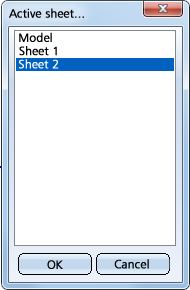
Select sheet area |
This function is only available if you have loaded a HiCAD drawing with several sheets. In this case you can use this function to select the desired Sheet area. |
|
Show all figures |
Re-displays all hidden 2-D parts. |
|
Hide figure |
Hides the active 2-D part. |
|
|
The current file will be printed. |
|
Print (B/W) |
Prints the current file in black and white. |
|
Colours/Line widths |
This function enables you to assign a line thickness and/or colour to each pen number of your printer/plotter. Assignments can be saved to files that can always be reloaded. |
|
Material directory |
From HiCAD next 2008 (version 14) onwards, the GFIG format will automatically be integrated in the SZA file when saving a drawing. This means that SZA files can now be displayed entirely, i.e. including 2-D and 3-D parts, in the HiCAD Viewer. In addition, a new Colour Management has been introduced that allows a distinguishing between drawing colours and system colours. Drawing colours are saved together with the drawing, making the formerly required additional material files redundant. Drawings (SZN) created with older HiCAD versions can be displayed in the Viewer if they contain shaded 3-D models. Glass models or 2-D objects are not displayed in the Viewer. For a realistic representation of the 3-D models, the user additionally requires the appropriate material file. |
|
B/W mode |
If this option is active, the Drawing tab will be displayed with a white background; otherwise, the background colour selected below is used. |
|
Background colour |
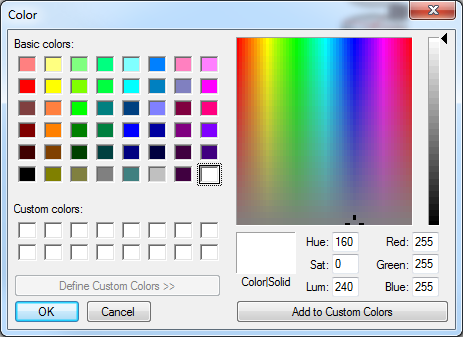
Assigns another background colour to the Drawing tab. When you select the function, the Color dialogue window will be displayed:
Besides the Basic colors you can also use Custom colors: On the right hand side of the window, define the desired colour, and click Add to Custom Colors. Select the desired colour or define a new one, and confirm with OK. |

|
View all |
The current file will be displayed as large as possible. |
|
Use this function to simplify OpenGL displays, which is particularly useful when working with complex 3-D files. A simplified OpenGL display allows a significant acceleration of the graphic representation. |
|
|
The function enables you to define the background for the View tab and to optimally illuminate your 3-D model with a minimum of input - based on OpenGL. |
|
|
Material directory |
From HiCAD next 2008 (version 14) onwards, the GFIG format will automatically be integrated in the SZA file when saving a drawing. This means that SZA files can now be displayed entirely, i.e. including 2-D and 3-D parts, in the HiCAD Viewer. In addition, a new Colour Management has been introduced that allows a distinguishing between drawing colours and system colours. Drawing colours are saved together with the drawing, making the formerly required additional material files redundant.. Drawings (SZN) created with older HiCAD versions can be displayed in the Viewer if they contain shaded 3-D models. Glass models or 2-D objects are not displayed in the Viewer. For a realistic representation of the 3-D models, the user additionally requires the appropriate material file. |
|
View all |
The current file will be displayed as large as possible. |
|
|
The current file will be printed. |
|
Copy |
Copies the current file as a pixel graphic to the Windows clipboard |
|
Interpolation |
Recalculates the picture. Various interpolation techniques which can be selected from the list box are available for the calculation. |
Related Topics
File Formats • User Interface • Mouse Button Functions
|
Version 2002 - HiCAD Viewer | Date: 29.09.2015 | © Copyright 1994-2015, ISD Software und Systeme GmbH |
 Select sheet